Video Upscaler





AI Video Upscaler: Enhance, Restore, and Upgrade Footage Online
Overview
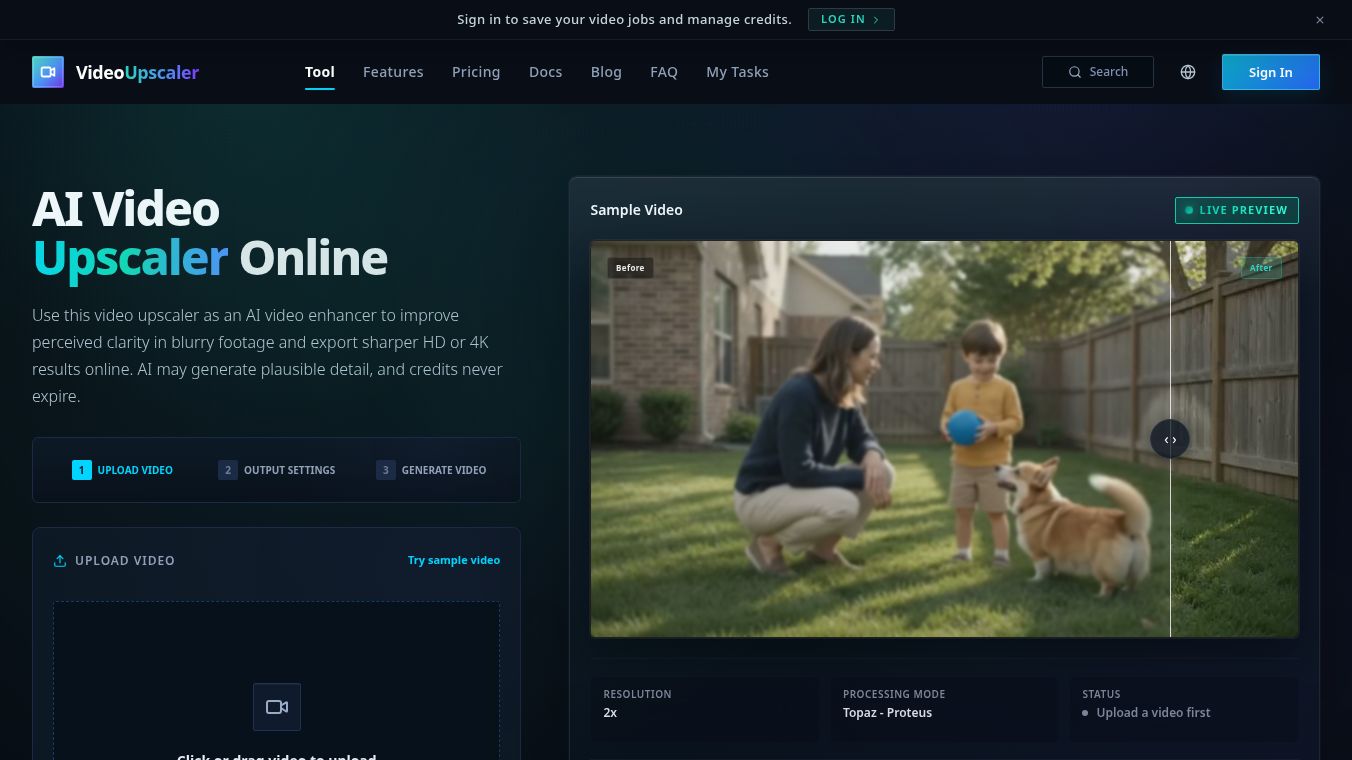
VideoUpscaler is an online AI-powered tool designed to improve the perceived clarity of blurry footage and export sharper HD or 4K results. By utilizing advanced AI models, the tool reconstructs texture and generates plausible detail to upgrade low-resolution videos. Users can upload clips directly to the browser, select specific enhancement settings, and generate a cleaner, higher-resolution output without needing to install software.
Benefits
The core of the tool is its ability to analyze each frame to improve edges, reduce artifacts, and reconstruct missing details. Key advantages include:-Resolution Upscaling: The system supports upscaling to 2x, 4x, HD, 2K, and 4K resolutions based on the source dimensions.-Quality Improvement: Beyond just resolution, the tool acts as a video quality enhancer, reducing noise, softening blur, and improving overall clarity while keeping footage natural.-Model Selection: Users can choose between different processing modes, such as "Proteus" (balanced enhancement) or "Topaz" (professional-grade), depending on the specific needs of the video.
Use Cases
The tool is versatile and serves several important purposes:1.Heritage & Archival Restoration: Ideal for family tapes, archived clips, and vintage footage. The AI helps make faces, clothing, signs, and background textures easier to recognize, effectively restoring old memories.2.Social Media Optimization: Designed for creators posting to platforms like TikTok, YouTube, and Instagram. Upscaling before reposting ensures that vertical clips, reels, and shorts look cleaner even after platform compression. HD output is suitable for fast publishing, while 4K provides more room for cropping.3.Professional Creator Workflow: Creators can use the tool to polish tutorials, interviews, product shots, gameplay, and B-roll footage. This helps content feel more professional and intentional without requiring a full re-edit.4.Fixing Heavy Compression: For downloaded, compressed, or messenger-saved clips, the tool applies noise reduction and sharpening together to produce a balanced result that looks cleaner but remains natural.
How to Use the Video Upscaler
The workflow is simple and consists of three main steps:1.Upload Your Video: Drag and drop your source clip. Ensure the file is under 200MB and in a supported format.2.Choose Output Settings: Select the desired resolution (HD or 4K) and the AI processing mode (e.g., Topaz or Proteus) that best matches your footage and delivery goals.3.Process and Export: Run the enhancement job. Once complete, export the sharper result featuring cleaner edges, better texture, and improved detail.
Best Practices for Optimal Results
To get the best performance from the AI video enhancer, consider the following professional workflow:-Check Source Quality: Start by reviewing the source file. A short, stable clip with visible faces, text, or scene detail provides the AI with more information to work with. If the video is heavily compressed, choose a denoise or general restoration mode first to improve quality without creating harsh edges.-Match Target Resolution: Align the output resolution with the final use case. HD is typically sufficient for social clips and product demos, while 4K is better for large screens and archived footage.-Compare and Iterate: After processing, compare the original and enhanced versions frame by frame. Look for improvements in text clarity, face sharpness, and texture readability. If further adjustments are needed, modify the model or processing mode rather than repeating the same settings.
Understanding the Technology
A video upscaler uses AI to increase resolution and reduce visible compression damage. It is important to note that while the tool can reconstruct plausible detail, this generated information may not match the original data that was missing from the source. The tool combines the functions of a video enhancer (improving quality) and a video upscaler (increasing resolution) to provide a comprehensive solution for modern large-screen playback and digital archiving.
Frequently Asked Questions
What is a video upscaler?It is a tool that uses AI to increase resolution, reduce compression artifacts, and reconstruct detail, allowing low-quality footage to look sharper on modern screens.
Can I upscale video to 4K online?Yes, the browser-based workflow supports processing clips for both HD and 4K output while improving clarity and texture.
Is a video enhancer different from a video upscaler?A video enhancer is a broader term for improving overall video quality, whereas upscaling specifically focuses on increasing resolution. This tool combines both functions.
What kind of videos work best?Low-resolution, blurry, compressed, archived, and social media clips usually benefit the most from this type of AI enhancement.
Additional Information
The online workflow supports a variety of video formats including MP4, MOV, WebM, M4V, and GIF. Files can be uploaded by clicking or dragging, with a maximum file size limit of 200MB. Credits are required for processing, but they never expire.
This content is either user submitted or generated using AI technology (including, but not limited to, Google Gemini API, Llama, Grok, and Mistral), based on automated research and analysis of public data sources from search engines like DuckDuckGo, Google Search, and SearXNG, and directly from the tool's own website and with minimal to no human editing/review. THEJO AI is not affiliated with or endorsed by the AI tools or services mentioned. This is provided for informational and reference purposes only, is not an endorsement or official advice, and may contain inaccuracies or biases. Please verify details with original sources.

Comments
Please log in to post a comment.